If your online store sells to business customers in the European Union or South Africa, you may need to include your customer’s VAT registration number on the invoices you create.
VAT registration numbers can have different names depending on the country.
In the UK and South Africa, they are commonly called VAT registration numbers. In other countries, you may see them referred to as:
- USt-IdNr. in Germany
- n° TVA in France
- P.IVA in Italy
- NIF in Spain
- CVR in Denmark
- RFC or RUC in Latin America
Sufio is an invoicing app for Shopify stores that helps you collect VAT registration numbers from your customers and automatically include them on their invoices.
In this article, you will learn how to collect VAT registration numbers using:
To collect VAT registration numbers in your Shopify store, you can add a VAT registration number field to your customer registration form.
This allows customers to enter their VAT registration number when they create an account in your online store.
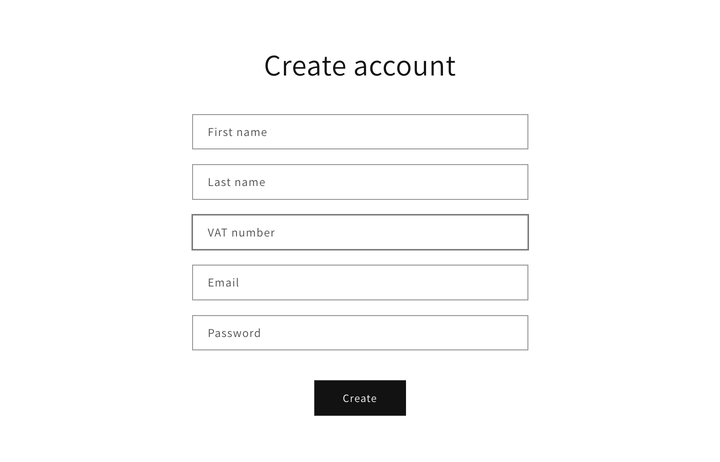
Once a customer enters their VAT registration number, it will be stored in your Shopify admin as part of their customer notes.
Sufio will then automatically include the VAT registration number on the invoices sent to the customer.
To add the VAT registration number field to your customer registration form, customize your Shopify store theme:
- In your Shopify admin, go to the Online Store → Themes page.
- Click the Actions button, then click Edit code.
- In the left sidebar, select customers/register.liquid. You can use the search bar at the top to find the file faster.
- Insert the following code snippet inside the
<form>tag. A good place to add the field is before the Email field.
You can add a VAT registration number field to the cart page so customers can enter their VAT registration number before checkout.
When a customer enters their VAT registration number using this field, it will be saved as a cart attribute in your Shopify admin. Sufio will then automatically include it on the invoices sent to the customer.
To add the VAT registration number field to the cart page, customize your Shopify store theme:
- In your Shopify admin, go to the Online Store → Themes page.
- Click the Actions button, then click Edit code.
- In the left sidebar, select cart.liquid. You can use the search bar at the top to find the file faster.
- Insert the code snippet inside the
<form>tag. A good place to add the field is just before the Check out button.
Note
Depending on your Shopify theme, you may need to add the code snippet to a different file than cart.liquid. In many themes, this file is named main-cart-footer.liquid.
If your store uses a cart drawer, also known as an Ajax cart, the correct file is usually ajax-cart-template.liquid.
For EU customers, you can use a code snippet that validates VAT registration numbers through the official VIES VAT number validation service.
Plan-specific feature
VAT registration number validation is available only for EU VAT registration numbers and only on the Professional and higher plans.
In addition to collecting VAT registration numbers through your online store, you can also add them manually in your Shopify admin.
This can be useful if your sales team regularly creates orders on behalf of customers, or if you need to create an order for a new customer manually.
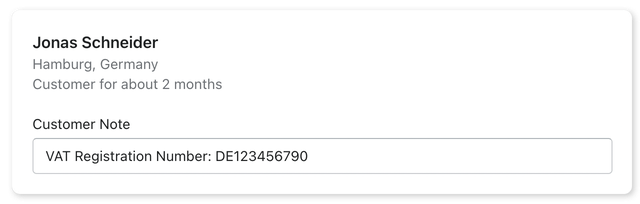
To add a customer’s VAT registration number as a customer note:
- In your Shopify admin, go to the Customers page.
- Select a customer, or click Add customer to create a new customer.
- Enter the VAT registration number in the Customer Note field. Use the prefix VAT Registration Number: or VAT Number:, for example, VAT Registration Number: DE123456790.
- Click Save to apply your changes.
You can add the VAT registration number before or after creating the order. Sufio will automatically sync the number and update the customer’s invoices.
Need help?
Having trouble customizing your Shopify store theme? Contact our support team. We’ll be happy to help.