A delivery note (also known as a packing slip) is a document included with a shipment that lists the products and quantities delivered to the customer.
A delivery note is used to confirm what is included in the package and to help the customer verify the shipment upon arrival.
Delivery notes can also include prices and totals, but in many countries, these details are usually omitted.
With Sufio, you can create and print delivery notes alongside your invoices in one place, keeping your documents consistent.
To print a new delivery note:
- In your Sufio account, open Invoices.
- Select the invoice you want to print the delivery note for.
- Click More and select Print Delivery Note.
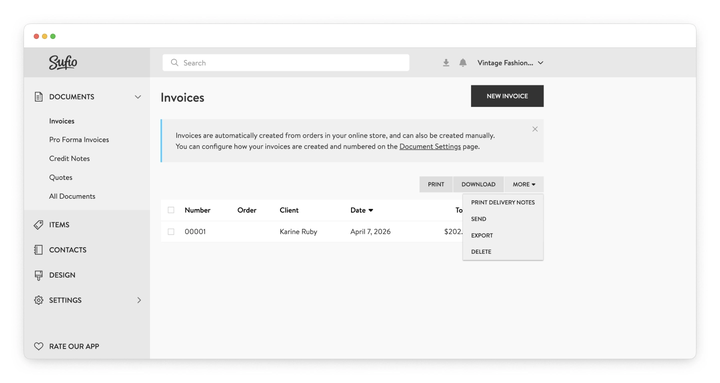
You can also print delivery notes for multiple invoices at once:
- In your Sufio account, select multiple invoices.
- Click More and select Print Delivery Notes.
A single PDF file with all selected delivery notes will be generated, ready for printing.
By default, delivery notes in Sufio include prices and totals.
Note
In Sufio, delivery notes are created from invoices, so an invoice must exist before you can create or print a delivery note.
You can also create and print delivery notes directly from your Shopify admin.
To print delivery notes for multiple orders:
- In your Shopify admin, go to the Orders page.
- Select the orders you want to print delivery notes for.
- Click the three dots icon (More actions) above the order list, then select Print Delivery Notes.
- A single PDF file with all selected delivery notes will be generated, ready for printing.
Note
If you select more than 10 orders, the delivery notes will be generated as a PDF file and sent to your email once ready, both in Sufio and in your Shopify admin.
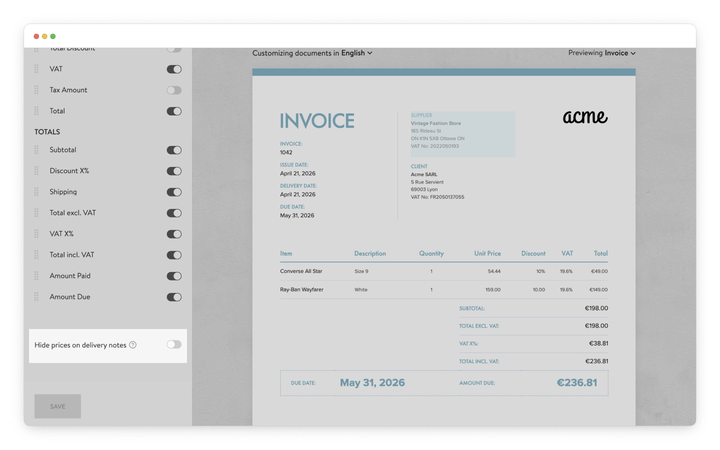
If you want to remove prices from your delivery notes, you can update this setting in the Design page.
To hide prices on delivery notes:
- In your Sufio account, go to the Design page.
- In the Line & Totals section, scroll to the bottom of the column and turn on Hide prices on delivery notes.
- Click the Save button.
In Sufio, you can only print delivery notes manually.
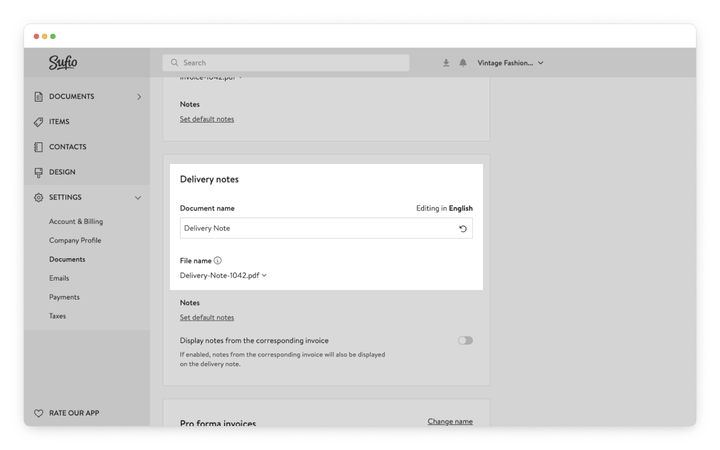
You can customize the heading of your delivery notes in Sufio by renaming the document.
To change the name of your delivery notes:
- In your Sufio account, go to Settings.
- Select Documents.
- Scroll down to the Delivery notes section.
- Click Change name.
- Enter your preferred document name and confirm the change.
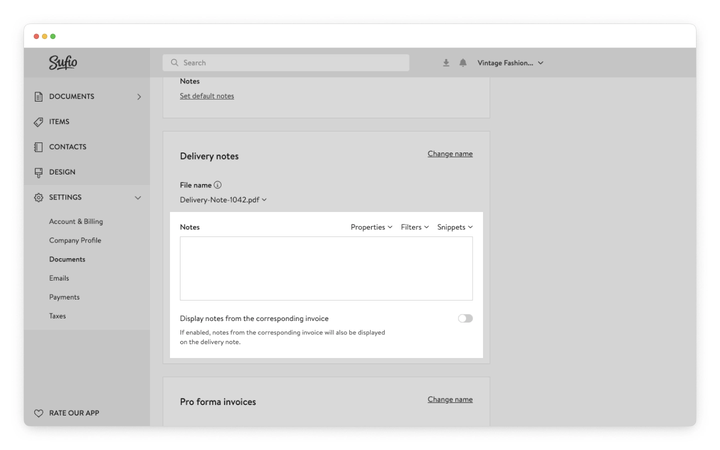
To add custom notes that will appear on your delivery notes:
- In your Sufio account, go to Settings.
- Select Documents.
- Scroll down to the Delivery notes section.
- In the Notes field, enter the text you want to display.
- The notes will be included on your delivery notes.
You can also choose to display notes from the corresponding invoice by enabling the option below the notes field.
No. In Sufio, delivery notes are generated from existing invoices. To print a delivery note, an invoice must first be created for the order.
Not at the moment. In Sufio, delivery notes can only be printed manually. If automatic delivery note generation is something you need, you can contact our support team to share your use case.
Yes, to an extent. There are a few things you can control directly in Sufio:
- Prices and totals — go to Design → Line & Totals and turn on Hide prices on delivery notes to remove them from the document.
- Document name — go to Settings → Documents, scroll to the Delivery notes section, and click Change name to rename it to something like “Packing Slip” or “Dispatch Note”.
- Custom notes — in the same Delivery notes section, use the Notes field to add text that will appear on every delivery note. You can also choose to display notes from the corresponding invoice.
For more advanced customisation — such as adjusting the layout or adding custom fields — you can use the template editor.
If you select more than 10 orders at once, the delivery notes will not download immediately.
Instead, a PDF containing all selected delivery notes will be generated and sent to your email once it is ready.
No, this isn’t currently customizable. Delivery notes are sent to the email address associated with your account.