Document creation modes determine how documents are generated and updated when changes occur, such as edits, refunds, or cancellations.
Choosing the right mode affects how your documents behave in Shopify and whether they comply with local accounting laws and regulations.
Sufio is an invoicing app for Shopify that automatically creates and manages documents, such as invoices, credit notes, and other billing documents—based on your store’s orders and settings.
Document creation modes in Sufio determine whether you create a single document per order or a series of documents that reflect each change made to the order, such as a return, refund, or edit.
The mode you choose should depend on your local accounting regulations, as well as your customers’ expectations and your internal workflow.
For example, in markets like the EU, local laws require that once an invoice has been issued to a customer, it can’t be modified.
Any changes must be recorded by creating additional documents, ensuring a clear and compliant paper trail.
To select a document creation mode:
- In your Sufio account, go to the Settings page, then open Documents.
- In the Document Creation Mode section, select one of the options:
- One invoice per order
- Multiple documents per order
- Click on the Update settings button at the top of the page to apply the changes.
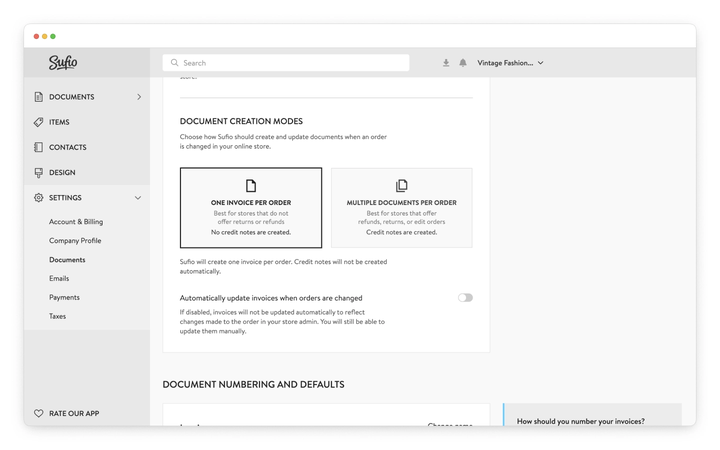
In the following sections, you will learn what each mode means and when to use it.
Caution
Changing the document creation mode only affects documents for orders placed after the change.
Documents for orders placed before the change—whether already created or newly generated—will follow the mode that was active at the time the order was placed.
The One invoice per order mode creates a single invoice for each order.
Any additional documents, such as credit notes, are not created automatically.
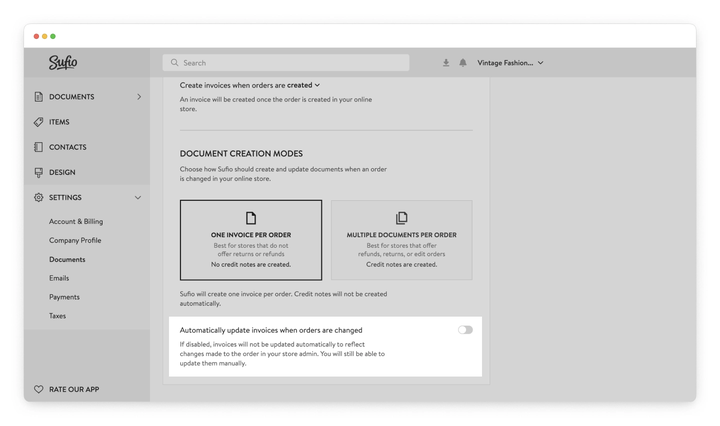
You can choose whether the invoice should reflect changes made to the order by using the Automatically update invoices when orders are changed setting.
When the Automatically update invoices when orders are changed toggle is turned off, the original invoice is not updated and will not reflect any changes made to the order after it is created.
However, you can still update the invoice manually to reflect the current state of the order.
Invoices with changes in their corresponding orders are marked with an exclamation mark in your Sufio account. To update an invoice, open it and click Update this invoice.
When the Automatically update invoices when orders are changed toggle is turned on, Sufio automatically updates the corresponding invoice each time an order is modified in your online store.
For example, if items are refunded or new items are added in the store admin, the invoice in Sufio is updated to reflect those changes.
With this setting enabled, the invoice always reflects the current state of the order and its items.
Note
If you use the One invoice per order mode, keep in mind that updating an invoice that has already been sent to your customer or accountant requires you to resend it.
Sufio doesn’t automatically resend the documents after they are updated.
In many countries, regulations forbid modifying invoices after they have been issued to the customer.
If you use the Multiple documents per order mode, Sufio will automatically create new documents, such as invoices or credit notes, to reflect changes made to an order.
This mode can create more than one document per order, including additional invoices.
This typically occurs when an order is refunded, returned, or edited—for example, when items are added or removed in the store admin.
The advantage of this mode is that the documents that are already issued remain unchanged.
Plan-specific feature
The Multiple documents per order mode is available only on the Professional plan and higher.
When using the Multiple documents per order mode, you can choose one of two options that determine how Sufio creates additional documents for updated orders:
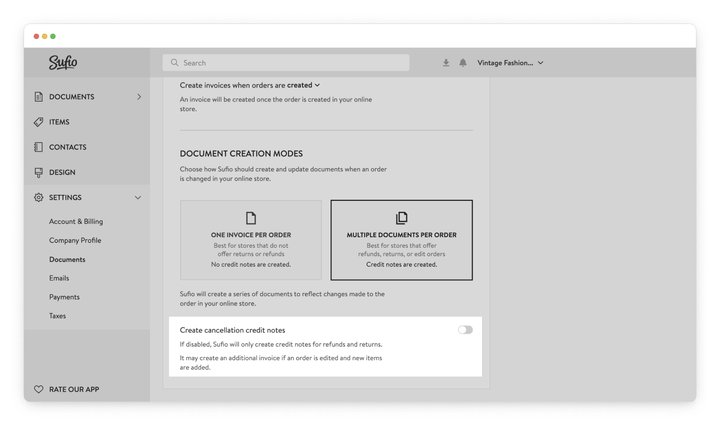
When the Create cancellation credit notes toggle is turned off, Sufio creates additional documents that supplement the original invoice.
In the case of a return or a refund, Sufio generates credit notes.
If an order is edited and new items are added, an additional invoice is created to show only the newly added items.
For example, when items are refunded in your store admin, they are removed from the order. In Sufio, these items remain on the original invoice, and a new credit note is automatically created for them.
When items are added to an order for which an invoice already exists, a new invoice for the added items is automatically generated.
Together, all documents reflect the latest state of the Shopify order.
The advantage of this setting is that it typically results in fewer documents compared to using cancellation credit notes.
When the Create cancellation credit notes toggle is turned on, Sufio creates cancellation credit notes for any changes made to the order.
For each change—such as a return, refund, or edit—Sufio generates a credit note that fully cancels the original invoice.
It then issues a new invoice reflecting the updated state of the order.
For example, when items are refunded in your store admin, they are removed from the order. In Sufio, a new credit note is automatically created to cancel the original invoice. A new invoice is then generated showing the updated order without the refunded items.
When an order is edited and items are added, a new credit note that cancels the previous invoice and a new invoice including both the original and newly added items are automatically created.
The advantage of this setting is that the latest invoice always reflects the current state of the order. However, it typically results in more documents being created per order.
Need help?
Not sure which document creation mode to use for your online store? Our support team will be happy to help you choose the right mode for your business and region.
The right mode depends on your location and accounting requirements.
For businesses in the EU or regions where invoices cannot be modified after being issued, Multiple documents per order is usually the better option. This ensures that issued invoices remain unchanged, while any updates are recorded as new documents.
In regions without strict invoice immutability rules, One invoice per order can be a simpler and easier option to manage.
If you're not sure which option is right for your setup, you can contact our support team for guidance.
No. Changing the document creation mode only affects orders placed after the change is applied.
Existing documents, and any documents created later for earlier orders, will continue to follow the mode that was active when those orders were placed.
The Multiple documents per order mode is available on the Professional plan and above. If you're on a lower plan, you can upgrade from the Billing page in your Sufio account.
This depends on the document creation mode you are using.
In One invoice per order mode, the original invoice remains unchanged by default. If automatic updates are enabled, Sufio updates the invoice to reflect the change, but it is not resent.
If automatic updates are disabled, the invoice is marked with an exclamation mark, and you can update it manually.
In Multiple documents per order mode, Sufio creates new documents to reflect the change. This may include a credit note for refunds or an additional invoice if items are added, depending on your credit note settings. The original invoice remains unchanged.
No. In One invoice per order mode, when an invoice is updated, either manually or automatically, Sufio does not resend it to the customer. You need to resend it manually.
I updated an order, but Sufio is showing an exclamation mark next to the invoice. What does that mean?
The exclamation mark indicates that the invoice no longer matches the current state of the order. This usually happens when the order is edited, refunded, or partially canceled after the invoice is created.
To resolve this, open the invoice in Sufio and click Update this invoice. This updates the invoice to reflect the current order. If the customer has already received the previous version, you will need to resend the updated invoice manually.