When selling internationally, your invoices may need to include customs-related details, such as HS or HSN codes and the country of origin (COO) for each product.
This article explains how to add these values to invoices created with Sufio.
Sufio is an invoicing app for Shopify stores that automatically creates professional invoices and other business documents for your orders.
HS codes, short for Harmonized System codes, are maintained by the World Customs Organization.
They are used to classify products for international trade and customs purposes. Products are grouped into 21 main sections, which are further divided into 96 chapters, headings, and subheadings.
Country of origin (COO) identifies where a product was manufactured or produced. While COO information can sometimes be used for marketing, it is often required for international shipments, customs declarations, and other import or export documents.
Commercial invoices provide a detailed overview of a shipment, including the products being delivered and any taxes, duties, or customs details that may apply.
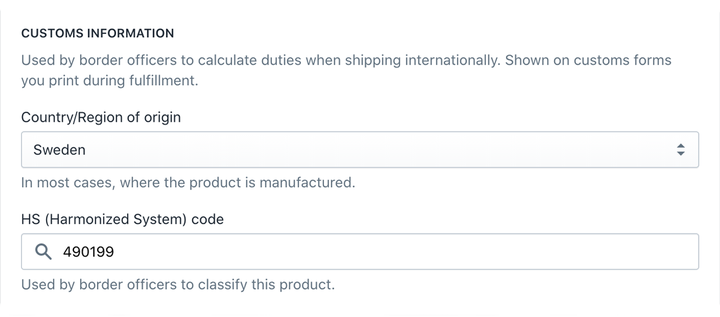
To include HS (or HSN) codes and COO values for your international customers on your documents, you first need to edit your product details.
To add an HS (or HSN) code or COO value to a product:
- In your Shopify admin, go to the Products page.
- Click the product you want to edit. If the product has multiple variants, select the specific variant.
- Scroll down to the Shipping section and expand the Customs information section.
- From the Country/Region of origin dropdown, select the country and, if applicable, the province or region.
- Enter the Harmonized System (HS) code or use the search feature to find the correct code by keyword.
- Click Save to apply your changes.
- Repeat these steps for each product variant, if applicable.
You can also add HS codes and country or region of origin to your products using the bulk editor or by importing them from a CSV file.
Plan-specific feature
Displaying customs information, such as HS (or HSN) codes and country of origin values, is only available on the Professional plan or higher.
Once your products are labeled correctly, you can set your documents to display the HS (or HSN) code and COO values.
The easiest way to do this is to enable the Commercial invoices feature, which automatically adds these values to your documents.
To enable the Commercial invoices feature:
- In your Sufio account, go to the Settings → Documents page.
- Navigate to the Document options → Line descriptions section.
- Select the Commercial invoices option.
- Click Update settings to apply your changes.
HS (or HSN) codes and country of origin values will then appear in the Description column on newly created invoices.
Alternatively, in step three, you can select Custom description and create your own template for line item descriptions.
Plan-specific feature
Want to customize how product details appear on your invoices? Learn more about configuring line item descriptions on your documents.