Different ecommerce scenarios require different types of accounting documents.
For retail customers, a simple, easy-to-read invoice listing purchased products, along with details like size or color, is usually enough.
However, international sales that involve customs often require more detailed documentation. These invoices may need to include countries of origin, Harmonized System (HS) codes, or product weights.
Sufio—an invoicing app for Shopify—lets you generate both standard and commercial invoices and customize line item descriptions to match your specific requirements.
Sufio offers two predefined options for the line descriptions: Regular invoices, which contain the basic product and variant details, and Commercial invoices with extended information.
To change the line description setting:
- In your Sufio account, go to the Settings → Documents page.
- Scroll down to the Document options section.
- Under Line description, select Regular invoices or Commercial invoices.
- Click on the Update settings button at the top of the page to apply the changes.
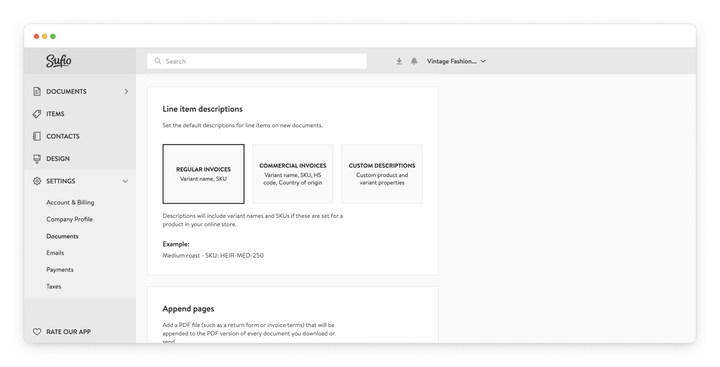
Regular invoices
This is the default setting. When Regular invoices are selected, the description column includes the following product details:
- Variant name
- SKU
Commercial invoices
Commercial invoices need to provide information for international export and import customs.
When Commercial invoices are selected, the description column includes additional product details:
- Variant name
- SKU
- HS code
- Country of origin
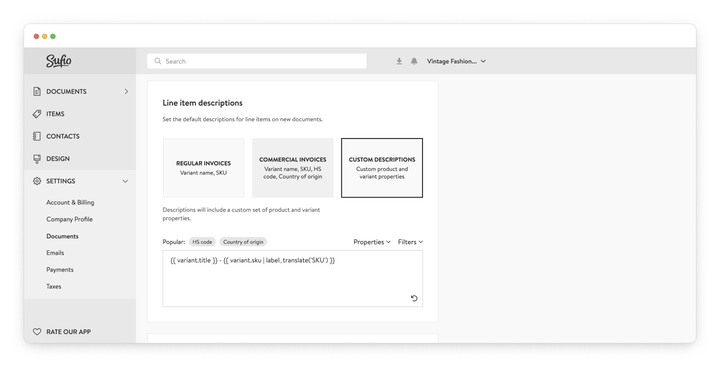
Plan-specific feature
Custom line descriptions are available on Professional and higher plans.
If you need to include specific product or variant details in your documents, you can create custom line item descriptions.
To set custom line item descriptions:
- In your Sufio account, navigate to the Settings → Documents page.
- Scroll down to the Document options section.
- Under Line description, select Custom description.
- Enter your description template in the text field. Use the Properties and Filters dropdowns to define the content; the live preview shows an example line item description.
- Click on the Update settings button at the top of the page to apply the changes.
This change will affect all types of documents, including invoices and credit notes.
Changes to line item descriptions apply only to newly created documents.
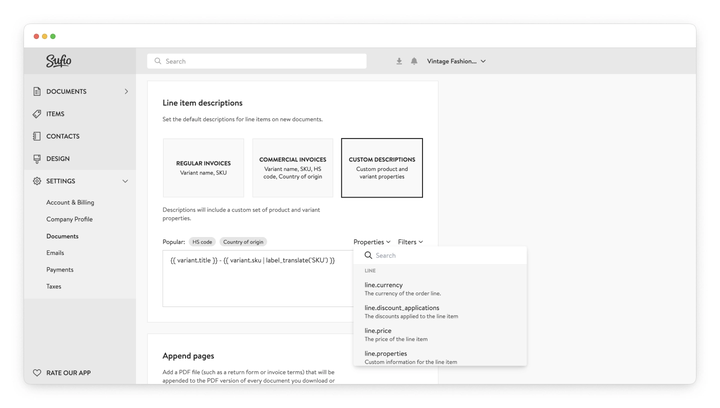
For example, this template shows the variant name, SKU, and vendor:
{{ line.variant_name }}SKU: {{ line.sku }} | Brand: {{ line.vendor }}
It renders as:
Classic T-Shirt – Medium / BlueSKU: TS-M-BLU | Brand: Acme Apparel