File names help you organize and identify your documents more easily.
By default, PDF file names include the document type and its number. However, you can customize them to include additional details, such as your customer’s name or the document issue date.
This can make it easier to recognize invoices at a glance, to sort files chronologically, or to match documents to specific customers.
In Sufio, an invoicing app that creates and manages documents for your Shopify store, you can fully customize how PDF file names are generated.
To change the file name of your PDF documents:
- In your Sufio account, go to the Settings → Documents page.
- In the Document numbering and defaults section, scroll down to the document type you want to update.
- From the File name dropdown, select one of the available naming formats.
- Click on the Update settings button at the top of the page to apply your changes.
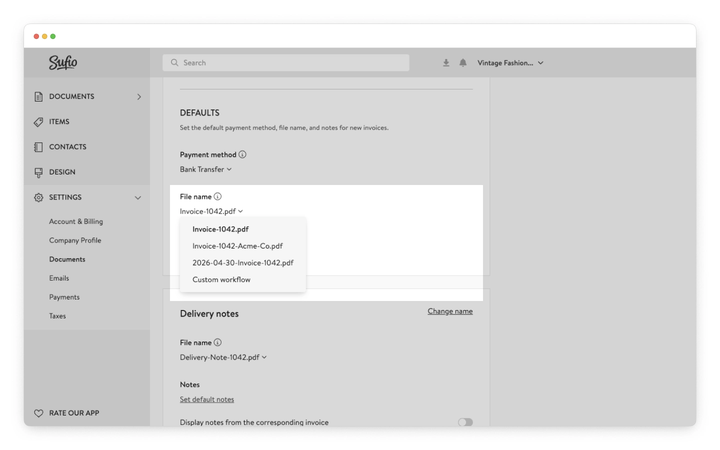
You can choose from four predefined file name formats:
The simplest format uses only the document type and its sequential number, such as Credit-Note-C0042.pdf.
This is the default format.
This format adds your customer’s name to the file name, alongside the document type and number, making it easier to identify documents.
For example: Credit-Note-C0042-Acme-Co.pdf.
This format starts with the document’s issue date (in YYYY-MM-DD format), followed by the document type and number.
This makes it easy to see when a document was created at a glance. For example: 2025-09-30-Credit-Note-C0042.pdf.
A custom workflow lets you create a fully customized file name format beyond the default options.
For example, you can include your brand name and due dates or create different formats based on customer groups, sales channels, or order properties.
If the predefined options don’t meet your needs, the Sufio team can set up a custom file name format for you.
Now, any new PDF documents you or your customers receive via email or download from Sufio will use the new file name format.
Plan-specific feature
Custom line descriptions are only available on Professional and higher plans.
Need help?
If you choose Custom workflow, contact our support team, and we’ll configure a custom file name format for you.