When Sufio creates an invoice from an order, it can automatically add order metafields to the corresponding Shopify order. These metafields store invoice details directly on the order.
Sufio, an invoicing app for Shopify, lets you use these metafields in automations, integrations, and reporting workflows.
This feature is useful in several ways. For example, other apps or integrations can read these metafields and use the invoice information in their workflows. You can also include these metafields when exporting orders from your store for analysis or reporting.
To configure Sufio to automatically create order metafields with invoice details:
- In your Sufio account, go to the Settings → Documents page.
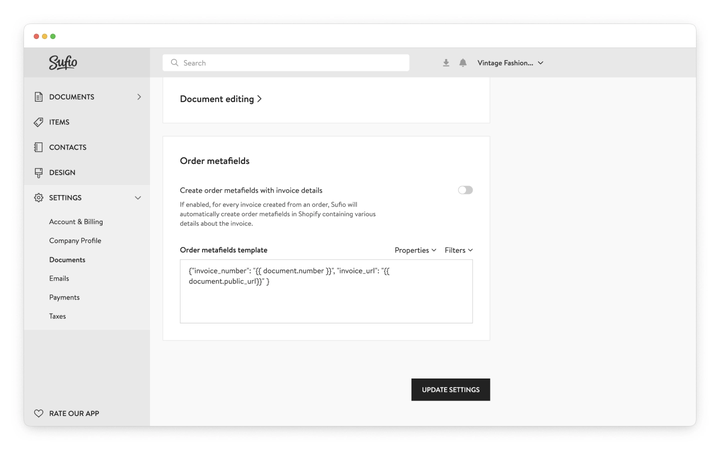
- Scroll down to the Advanced options section and expand Order metafields.
- Turn on the Create order metafields with invoice details toggle.
- Click the Update settings button at the bottom of the page to save your changes.
By default, enabling this feature adds the following metafields to each order:
invoice_number: The invoice number (the value ofdocument.number).invoice_url: A public link to the invoice (document.public_url). This metafield only contains a value if online documents are enabled in Sufio.
Note
When using the multiple documents per order mode, Sufio creates order metafields only for the first invoice created for the order.
You can customize which invoice properties are saved as order metafields and also use static text values. For example, you might want to save the invoice total in addition to the default metafields.
To define custom metafields, enter the name and value for each metafield in the Order metafields template field. Use the appropriate property, such as document.totals.total_incl_tax for the invoice total, or enter a fixed string as the value.
If you want to keep the default invoice_number and invoice_url metafields alongside your custom ones, make sure to include them in the template as well.
For example, to create the default metafields and also include the invoice total and source, copy and paste the following snippet into the Order metafields template field:
Click the Update settings button to apply your changes.
Plan-specific feature
Creation of order metafields is only available on the Premium plan and higher.