The due date is the date an invoice is due for payment.
Including a due date on your invoices is essential if you create invoices before they are paid, for example, when using manual payment methods like bank transfer or when customers pay their invoices online by card.
Sufio is an invoicing app that helps you create and manage invoices in your Shopify store.
In Sufio, invoices automatically update their status when the due date passes. Overdue invoices are marked as Due and are not automatically canceled or deleted.
Sufio automatically calculates the due date as a number of calendar days, starting from the day after the issue date.
You only need to set your preferred payment period, such as 7, 15, or 30 days.
To set a custom due date:
- In your Sufio account, go to the Settings → Documents page.
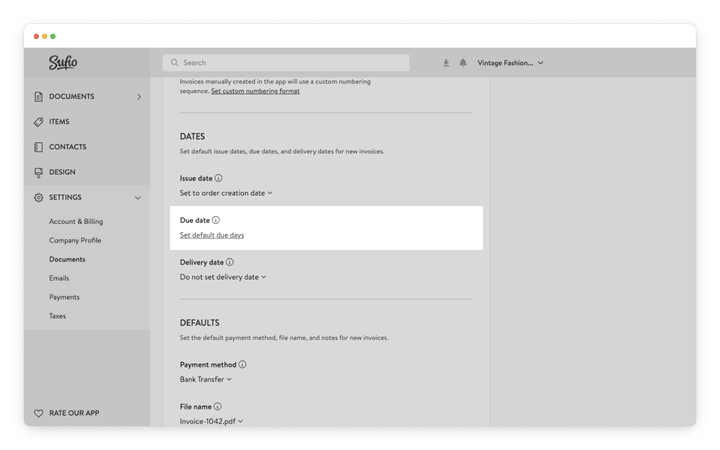
- Scroll down to the Document numbering and defaults → Dates section.
- Under Due date, click on the Set default due days button.
- Enter the number of calendar days for the due period.
- Click on the Update settings button at the top of the page to apply the changes.
For newly created unpaid invoices, Sufio will automatically set the due date and display it on the invoice.
With Shopify payment terms, you can create different payment schedules for your customers, such as net 30, net 60, or custom terms for B2B transactions, where larger orders and extended payment periods are common.
If you use Shopify B2B, you can set default payment terms for each company or company location. This ensures that orders automatically follow the assigned payment schedule.
Alternatively, you can assign payment terms manually when creating draft orders in Shopify.
Sufio integrates seamlessly with Shopify payment terms. Once you set your preferred terms, the due date automatically appears on invoices created from Shopify orders.
By default, Sufio uses the payment terms to determine the invoice due date. For example, if you created an order on November 11, 2024, using the net 30 payment terms, the invoice due date will be set for December 11, 2024.
You can also choose to display the name of the applied payment terms directly on your documents for added clarity.
This can be done by customizing the template code and adding the order.payment_terms.payment_terms_name property to your Payments section.
Note
By default, Sufio doesn’t display the due date or the payment term name on invoices.
To make them visible, enable the due date field or customize how dates appear in your document template.
No. Any changes you make to your due date settings apply only to invoices created after the change is saved.
Invoices that have already been issued keep their original due date.
By default, Sufio doesn't display the due date on invoices—even if a due date has been calculated.
To make it visible, you need to enable the due date field in your document template. Go to Design → Dates and make sure the due date field is turned on.
If the field is already enabled and the date is still not appearing, check that the invoice was created after you saved your due date settings. Existing invoices are not updated automatically.
If your Shopify store has payment terms set up—for example, net 30 or net 60—Sufio uses those instead of your default due days setting. Shopify payment terms take priority when they are applied to an order.
You can check whether payment terms are applied to specific orders directly in your Shopify admin. If you want Sufio to always use your configured due dates, remove or adjust the payment terms on those orders in Shopify.
Sufio automatically updates the invoice status to Due once the due date has passed.
If you want to remind customers about unpaid invoices, you can set up automatic reminders for overdue invoices.