The issue date on an invoice indicates when the invoice was created and delivered to your customer. Including this date ensures that both parties understand when the terms and conditions on the invoice take effect.
Typically, the invoice issue date should match the date when the invoice is created and sent to your customer.
If the order was not paid at the time it was created, the issue date also marks the start of the period until the due date of the invoice.
This is common for payment methods such as bank transfers, where payment is made later.
Sufio is an invoicing app for Shopify that generates and manages invoices and other documents based on your store’s orders and settings.
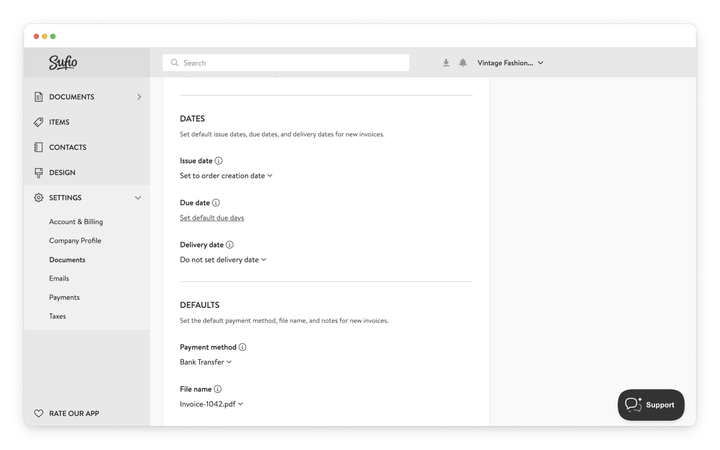
By default, the issue date is set to the date the invoice is created.
To change the invoice issue date for new invoices:
- In your Sufio account, go to the Settings → Documents page.
- Scroll down to the Document numbering and defaults → Dates section.
- From the Issue Date dropdown, select one of the options listed below.
- Click on Update settings at the top of the page to apply the changes.
The invoice issue date will match the date the invoice was created. This is the default and recommended setting.
The invoice issue date will match the date the order was created.
Note that if you create invoices when orders are paid or fulfilled, the order and invoice creation dates may differ.
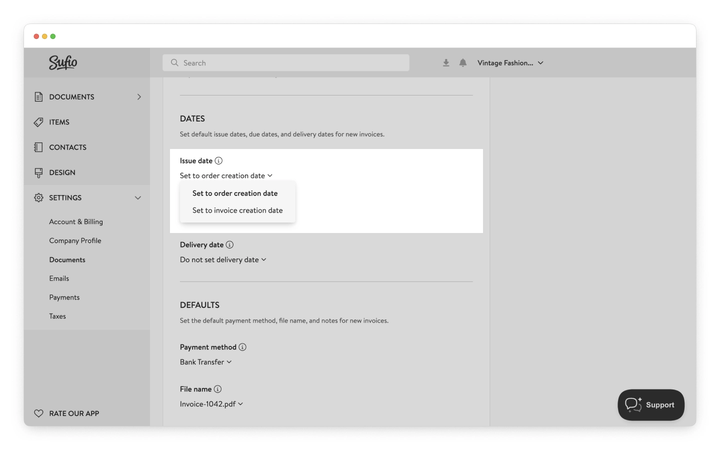
For most businesses, the default Set to invoice creation date is the recommended option.
It ensures the issue date reflects when the invoice is created and aligns with typical accounting and legal expectations.
Set to order creation date is useful if you want the invoice to reflect when the transaction originally occurred.
For example, if you create invoices upon fulfillment but want the issue date to match when the order was placed.
Keep in mind that if there is a delay between the order and invoice creation, the issue date may appear in the past.
If you're not sure which setting is appropriate for your region or accounting setup, consult your accountant.
No. Changes to issue date settings apply only to invoices created after the change is saved.
Existing invoices retain their original issue date.
This usually happens when Set to order creation date is enabled. If the invoice is created after the order, such as during payment or fulfillment, the issue date reflects the order date, not the invoice creation date.
To make sure the issue date always matches when the invoice is created, switch to Set to invoice creation date.
Issue date changes only apply to invoices created after the setting was updated.
Invoices that were already created before the change will keep their original issue date. If you need to correct the date on a specific invoice, open it in Sufio and update it manually.
Need help?
Do you need help with customizing your Shopify store theme? Please contact our experienced support team. We'll be happy to assist!