If your Shopify store sells to business customers in Australia, you may need to show your customer’s ABN (Australian Business Number) on their invoices.
ABNs help identify businesses in Australia and are commonly used in business-to-business transactions.
Sufio is an invoicing app for Shopify stores that helps you collect customer ABNs and add them to invoices automatically.
Shopify checkout customization is limited and may depend on your Shopify plan. To collect ABNs without changing the checkout form, you can add an ABN field to another part of your store.
In this article, we will cover how to include the ABN using:
To collect ABNs in your Shopify store, you can add an ABN field to your customer registration form.
This allows business customers to enter their ABN when they create an account in your online store.
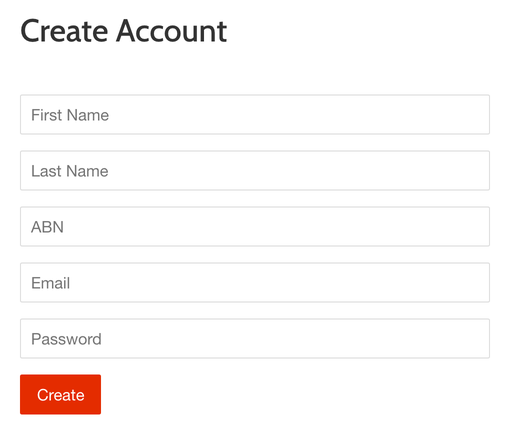
Once a customer enters their ABN, it will be stored in your Shopify admin as part of their customer notes. Sufio will then automatically include the ABN on the invoices sent to the customer.
To add the ABN field to your customer registration form, customize your Shopify store theme:
- In your Shopify admin, go to the Online Store → Themes page.
- Click the Actions button, then click Edit code.
- In the left sidebar, select customers/register.liquid. You can use the search bar at the top to find the file faster.
- Insert the following code snippet inside the
<form>tag. A good place to add the field is before the Email field.
You can add an ABN field to the cart page so customers can enter their ABN before checkout.
When a customer enters their ABN using this field, it will be saved as a cart attribute in your Shopify admin. Sufio will then automatically include it on the invoices sent to the customer.
To add the ABN field to the cart page, customize your Shopify store theme:
- In your Shopify admin, go to the Online Store → Themes page.
- Click the Actions button, then click Edit code.
- In the left sidebar, select cart.liquid. You can use the search bar at the top to find the file faster.
- Insert the code snippet inside the
<form>tag. A good place to add the field is just before the Check out button.
Note
Depending on your Shopify theme, you may need to add the code snippet to a different file than cart.liquid. In many themes, this file is named main-cart-footer.liquid.
If your store uses a cart drawer, also known as an Ajax cart, the correct file is usually ajax-cart-template.liquid.
In addition to collecting ABNs through your online store, you can add them manually in your Shopify admin.
This can be useful if your sales team regularly creates orders on behalf of customers, or if you need to create an order for a new customer manually.
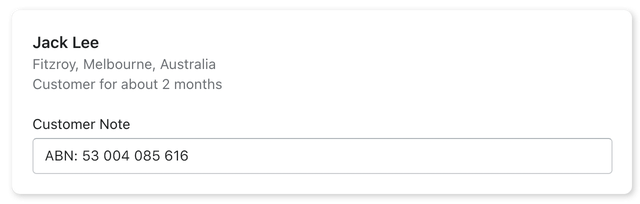
To add a customer’s ABN as a customer note:
- In your Shopify admin, go to the Customers page.
- Select a customer, or click Add customer to create a new customer.
- Enter the ABN in the Customer Note field. Use the prefix ABN:, for example, ABN: 53 004 085 616.
- Click Save to save your changes.
You can add the ABN before or after creating the order. Sufio will automatically sync the number and update the customer’s invoices.
Need help?
Having trouble customizing your Shopify store theme? Contact our support team. We’ll be happy to guide you through it.