The great advantage of ecommerce is that you’re able to sell to anyone, anywhere. By allowing customers to shop and pay in their local currency, you improve their experience and reduce the number of visitors who leave without purchasing.
Stores running on Shopify can display product prices in different currencies, making the shopping experience smoother for international customers. They can view prices and pay for orders in their local currency.
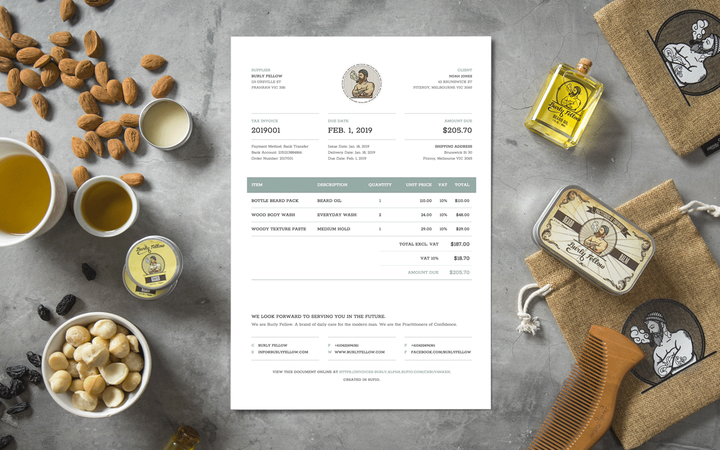
If your Shopify store sells in multiple currencies, Sufio can create and send invoices (and other documents) to your customers in the currency of purchase.
- Automated solutions
- Shopify Payments multi-currency solution
- Multi-currency Shopify apps: Currency Converter Plus
Sufio automatically supports the most popular multi-currency solutions, such as Shopify Payments or certain third-party apps.
This seamless integration means your customers can go through the entire purchase process—from viewing product prices and paying at checkout to receiving their invoice—in their local currency.
Sufio works in tandem with Shopify Payments, creating and sending invoices in the currency your customers use at checkout.
No additional steps are necessary on your part – Sufio will use the order’s currency for the invoice automatically.
Shopify Payments automatically accepts all primary payment methods as soon as you create your Shopify store. This means international customers can view product prices, pay for their orders at checkout, and even receive refunds in their local currency.
When Shopify Payments is unavailable due to country restrictions, you can use a third-party multi-currency app to achieve the same result.
One recommended app is Currency Converter Plus, a great currency converter app that requires no coding skills to install or configure. It includes automatic country detection, and exchange rates are updated every minute.
When using Currency Converter Plus, configuring the app to work with Sufio is very simple:
- Open the application's Preferences page.
- In the Shopping cart section, click on the Additional settings button.
- Check the Enable cart tracking attributes checkbox.
Once this setting is enabled, invoices will be automatically created and sent to customers in the currency they used while browsing your store. Sufio will capture the chosen currency and its exchange rate from the order information provided by the app.
Need help?
Do you need help with customizing your Shopify store theme? Please contact our experienced support team. We'll be happy to assist!
Invoices for Shopify stores in multiple currencies
Let Sufio automatically send invoices and receipts in correct currency for every order made in your store.
Install Sufio - Invoices in multiple currencies from the Shopify App Store