In some countries or when selling internationally, invoices are required to include the customs information like HS (or HSN) codes and the country of origin. In this article, you’ll learn how to include these values on all your invoices you create.
Harmonized System (HS) codes are maintained by the World Customs Organization. They categorize products into 21 main sections, which are subdivided into 96 chapters. Each chapter is then split into several headings and subheadings.
Country of origin (COO) values represent where a specific product comes from—the place of manufacture. Sometimes COO values are used for marketing purposes; however, when you sell across borders, this information may be required to be indicated in export or import documents or in submissions to government authorities.
Commercial invoices contain a complete picture of what a delivery contains and the taxes or duties that may be associated. Sufio can automatically create such invoices from orders in your Shopify store.
Note
Customs information as HS (or HSN) codes or country of origin values are only available in our Professional or higher plans.
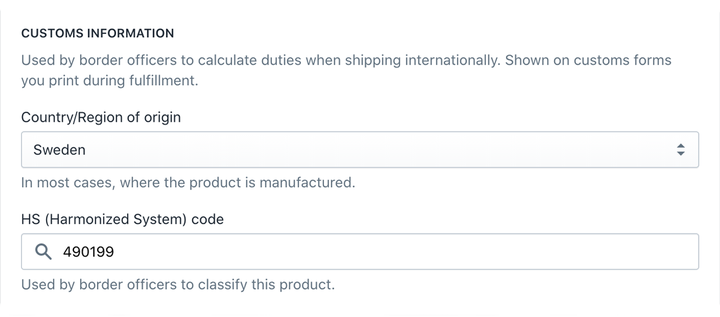
To include HS (or HSN) codes and COO values for your international customers on your documents, you first need to edit your product details.
To add the HS (or HSN) code or the COO value to a product:
- In your Shopify Admin, go to the Products page.
- Click on the product you want to edit. If your product has more variants, click on the product variant.
- Scroll down to the Shipping section and expand the Customs information section.
- From the Country/Region of origin dropdown, select the country and, where applicable, the province.
- Enter the Harmonized System (HS) code value or use the search feature to find the code by keyword.
- Then, click on Save to apply the changes.
- Repeat the steps for each product variant, if you use variants.
You can also add HS codes and country or region of origin to your products using the bulk editor or by importing them from a CSV file.
Once your products are labeled correctly, you can set your documents to display the HS (or HSN) code and COO values.
The simplest solution is to turn on the Commercial invoices feature, which automatically includes these values on your documents.
To turn the Commercial invoices feature on:
- In your Sufio account, go to the Settings → Documents page.
- Navigate to the Document options → Line descriptions section.
- Select the Commercial invoices option.
- Click on the Update settings button to apply the changes.
The HS (or HSN) code and country of origin values will then be displayed in the Description column on newly created invoices.
Alternatively, in step 3, you can select Custom description and enter your own template for the line item descriptions.
Professional invoices for Shopify stores
Let Sufio automatically create and send beautiful invoices for every order in your store.
Install Sufio - Automatic Invoices from the Shopify App Store