When handling returns and refunds in your Shopify store, creating credit notes is essential to keep your accounting records accurate, stay compliant with tax requirements, and provide customers with proof of refunded payments.
Depending on how your store handles returns, this process can be automated to save time and ensure every refund is properly documented.
Sufio is an invoicing app for Shopify that helps simplify this workflow by automatically creating credit notes for returns and refunds, while giving you control over how and when they are issued.
This article covers:
A credit note is a tax document that confirms a refund has been issued and records the amount being returned to the customer.
It helps keep accounting accurate and provides official documentation for both the merchant and the buyer.
To enable automatic credit note creation in Sufio, you first need to activate the Multiple documents per order creation mode:
- In your Sufio account, go to the Settings and then Documents.
- In the Document creation modes section, select the Multiple documents per order option.
- You may turn the Create cancellation credit notes toggle on or off to select the type of credit notes the app should create.
- Click on the Update settings button at the top of the page to apply the changes.
With the updated settings in place, Sufio will start creating multiple documents that accurately reflect changes made to the order in your online store.
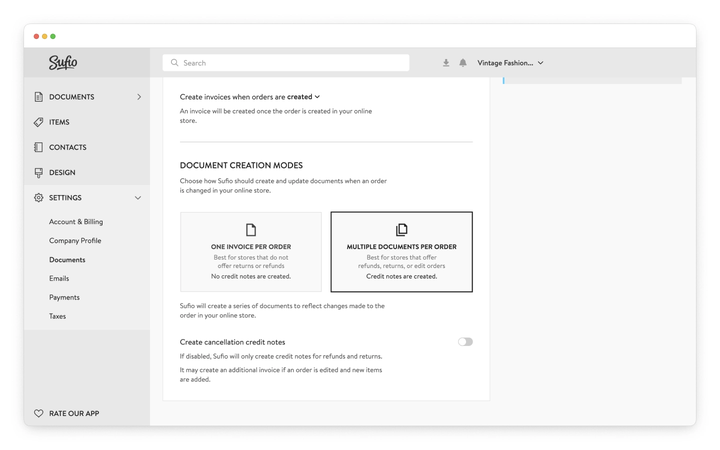
The updated settings also determine how Sufio creates these additional documents, allowing you to choose between incremental credit notes and cancellation credit notes depending on how you want order changes to be reflected.
When the Create cancellation credit notes toggle is turned off, Sufio will only create credit notes for returns and refunds.
If an order is edited and new items are added, an additional invoice with the newly added items will be created.
The main advantage of this setting is that each change to the order is recorded through an additional invoice or credit note, and together these documents reflect the current order status.
In most cases, this also results in fewer documents compared to using cancellation credit notes.
Tip
For most merchants, creating incremental credit notes is the recommended setting because it adheres to common accounting and bookkeeping standards. We advise you to verify this with your local accountant for peace of mind.
When the Create cancellation credit notes toggle is turned on, Sufio will create a cancellation credit note for every change made to an order, such as a return, refund, or edit. This credit note fully cancels the original invoice.
Sufio will then generate a new invoice that reflects the updated state of the order.
The advantage of the setting is that after each change to the order, both you and your customer have one updated summary invoice that shows the latest state of their order.
Note
Changes to the document creation mode apply only to orders created after the update.
Orders created earlier will keep the document creation mode that was selected when they were originally created.
You also have the option to manually create credit notes from existing invoices.
- In your Sufio account, go to the Documents and then Invoices.
- Open an invoice for which you want to create a credit note.
- In the invoice view, click More, then select Create credit note.
- By default, a credit note contains all items from the invoice. To create a partial credit note, remove the item lines you don’t want to be included, or adjust the item quantities.
- Click Save to apply the changes.
The credit note will then be created and saved in your account. You can click Send credit note to send it to the customer.
Tip
To create a standalone credit note that is not based on an invoice, go to Documents, select Credit notes, and click New credit note.
If a credit note was not created after a refund, it is usually related to your document creation settings or how the order was processed.
Common reasons include:
- The Multiple documents per order mode is not enabled
- The refund was made before the invoice was created or finalized
- The order does not meet the conditions required for automatic document creation
- The order was created before your current settings were applied
To ensure credit notes are created automatically, enable Multiple documents per order in your Sufio settings and make sure refunds are processed after the invoice is issued.
This behavior depends on your document creation mode in Sufio.
If Create cancellation credit notes is enabled:
- Sufio creates a credit note that cancels the entire original invoice
- A new invoice is then generated to reflect the updated order
This means even a partial refund can result in a full credit note, followed by a corrected invoice.
If you want credit notes to reflect only the refunded items, use incremental credit notes instead.
Differences in credit note amounts are caused by how order changes are recorded over time.
This may happen when:
- The refund is partial, but the order includes multiple changes
- The order was edited after the original invoice was created
- Multiple documents (invoices and credit notes) together reflect the final state of the order
With incremental credit notes, each document represents a change, and you need to consider all related documents together to see the full picture.
With cancellation credit notes, the original invoice is replaced, which can also change how amounts appear.
To understand the final amounts, review all documents linked to the order and how they reflect its current state.