If you have a multilingual Shopify store, Sufio can create and send invoices and other documents, such as credit notes, in the same language your customers used while shopping in your store.
All Sufio invoices are professionally translated by local accountants and are currently available in almost 40 languages.
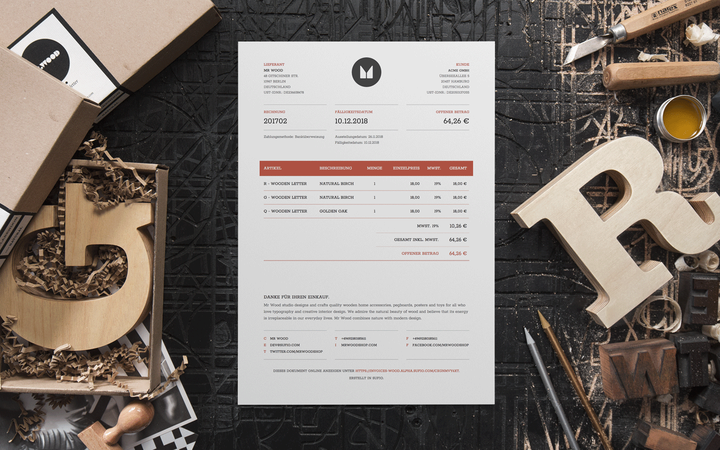
By default, Sufio creates documents in the language of your online store, or the language you select when you install the Sufio app. You can choose a different language:
- In your Sufio account, go to the Settings → Documents page.
- Scroll down to the Document options → Language section.
- From the Default language dropdown, select your preferred default language for creating documents.
- Click on the Update settings button to apply the changes.
Owners of multilingual stores can set Sufio to create the documents in the language the customer selects in their store. This way, the customer experiences the whole shopping experience, from opening their website to receiving an invoice for their order, in the language they are familiar with.
Sufio now integrates seamlessly with some of the most used multi-lingual apps on the Shopify platform. To enable the creation of documents in multiple languages:
- In your Sufio account, go to the Settings → Documents page.
- Scroll down to the Document options → Language section.
- Turn the Create documents in the customer’s selected language toggle on.
- Click on the Update settings button to apply the changes.
No other actions, such as modifications to the code of the store theme, are necessary.
You can manually change the language of any earlier created document.
Changing the language of the document does not affect any information on the document, such as prices, dates, item names, or the document currency.
To change the document language:
- In your Sufio account, open the document that you want to change the language of.
- In the document view, click on the Edit button.
- In the editor, expand More options and from the Language dropdown, select the desired language of the document.
- Click on the Save button to apply the changes.
The document is now displayed in the language you picked.
Note
The change of the document language does not impact previously created PDF documents.
Invoices are currently available in 37 different languages — English, Spanish, French, German, Italian, Portuguese, Dutch, Danish, Swedish, Norwegian, Finnish, Slovak, Czech, Hungarian, Estonian, Greek, Icelandic, Latvian, Lithuanian, Polish, Romanian, Slovenian, Serbian, Croatian, Russian, Bulgarian, Turkish, Arabic, Hebrew, Japanese, Traditional and Simplified Chinese, Korean, Thai, Vietnamese, Malay, and Indonesian.
Need help?
Do you need any help with setting up invoices in multiple languages for your store? Please contact our support. We'll be happy to assist.
Invoices for Shopify stores in multiple languages
Let Sufio automatically send invoices and receipts in correct language for every order made in your store.
Install Sufio - Invoices in multiple languages from the Shopify App Store