Sufio allows you to include QR codes on your invoices, pro forma invoices, credit notes, or delivery notes.
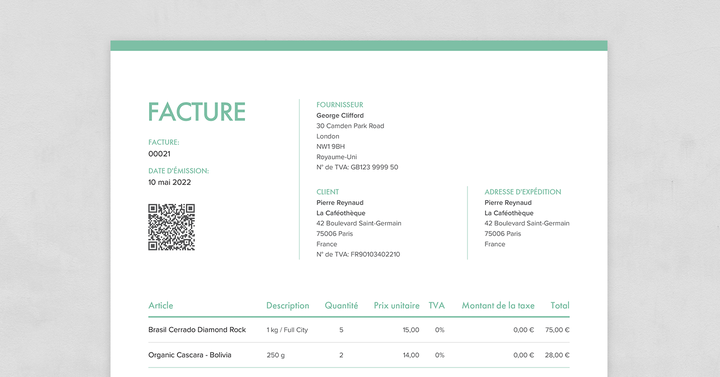
QR codes let your customers quickly access important information by scanning the code with their device. This can be a useful way to display, for example, the Shopify order status page where customers review and pay for their unpaid orders.
However, with Sufio, any information can be rendered as a QR code.
You can also change the colors or size of the QR code, or even include your logo inside the code.
Note
You can render any information as a QR code on your documents. However, keep in mind that when you scan a QR code with your smartphone, by default, the software tries to open the scanned text in a web browser.
Therefore, unless you use QR codes with a dedicated app, we recommend that you include only links in your QR codes.
Sufio’s document templates let you create dynamic QR codes that contain any information you want—such as data that can be scanned with a dedicated app or a scanner, or any URL, like a link to a feedback form on your online store, personalized with a document number.
Our templates support a qr_code filter that creates a QR code from any text.
To place a QR code on your document:
- In your Sufio account, go to the Design page.
- Click on the Edit code button.
- Use the qr_code filter in the template editor. A good place for the QR code is near the payment details or totals on your document.
- Click on the Save button to apply your changes to the preview.
- Once you are satisfied with the QR code, click on the Publish button to apply the new template to all the documents in your account.
Now, every document, including those created previously, will include your QR code.
For example, suppose you want to include a QR code that, upon scanning, opens the online document. To do this, you can insert the following code snippet:
If you operate within the eurozone, you may be interested in sending your invoices with a European Payments Council (EPC) QR code. When your customers scan the QR code using their banking app, the app initiates a SEPA credit transfer for payment of the invoice.
Sufio can automatically include EPC QR codes on invoices in euro and pre-fill them with the payment information from the invoice.
To include an EPC QR code on your invoices:
- In your Sufio account, go to the Design page.
- Click on the Edit code button.
- In the template editor, insert the following snippet inside the template code:
- Click on the Save button to apply your changes to the preview.
- Once you are satisfied with the QR code, click on the Publish button to apply the new template on all the documents in your account.
Now, every document that contains the required payment information, including those created previously, will include an EPC QR code.
Note
Use filter parameters to specify payment information, such as custom IBAN or payment reference.
You can use the same parameters as for the qr_code filter to change the colors or size of the QR code or include your logo.
Note
If your online store is based in Saudi Arabia, you're legally required to include e-invoicing compliant QR codes on all invoices to be fully compliant with the e-Invoicing regulations (FATOORA, الفوترة الإلكترونية) given by Zakat, Tax, and Customs Authority (ZATCA) in Saudi Arabia (KSA). To find out more, read the Support for e-invoicing compliant QR codes for online stores in Saudi Arabia article.
Professional invoices for Shopify stores
Let Sufio automatically create and send beautiful invoices for every order in your store.
Install Sufio - Automatic Invoices from the Shopify App Store