The customer account page in your Shopify store gives customers an overview of their account and recent orders.
With Sufio, an invoicing app for Shopify stores, you can add links that let customers view or download invoices for each order listed on this page.
The setup process depends on whether your store uses new customer accounts or classic customer accounts. Follow the relevant section below:
Sufio allows you to add a View invoice or Download invoice link to each order using our Shopify Customer accounts UI extension.
This gives customers easy access to invoices from their previous orders directly within their customer account.
Invoice links are automatically displayed in one of seven supported languages, based on the language the customer uses in your store.
The supported languages are English, German, French, Dutch, Spanish, Danish, and Italian.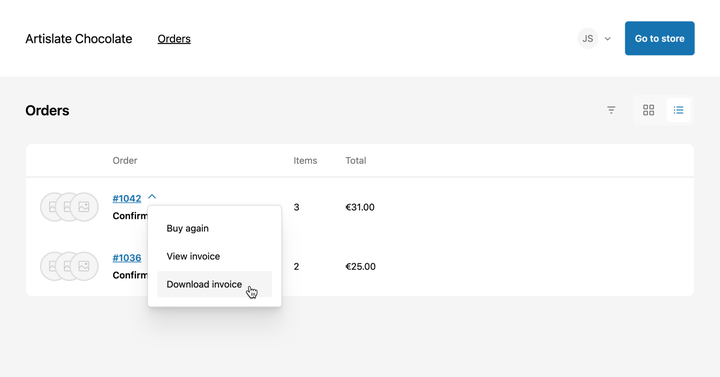
To add an invoice link to the Orders and Order status page:
- In your Shopify admin, go to Online Store → Themes.
- Click Customize next to the checkout profile you are using.
- In the editor header, click Home page and select Checkout and new customer accounts from the dropdown. Then select Orders.
- In the left sidebar, under Order details, click Add app block and select Sufio: Customer invoices.
- Click Save to apply the changes.
A View invoice link will be displayed for each order on the Orders and Order status page.
Some older Sufio accounts may require an additional authorization step before invoice links can be displayed.
To grant the extension permission to access order data:
- Click Activate if the button appears in the preview.
- A permissions request page will open. Click Update Data Access.
- A new browser tab will open. Click Update and wait until you're redirected back to your Sufio account. You can then close this tab.
- Refresh the Shopify page.
You can adjust the extension to either display an online invoice or download a PDF version directly.
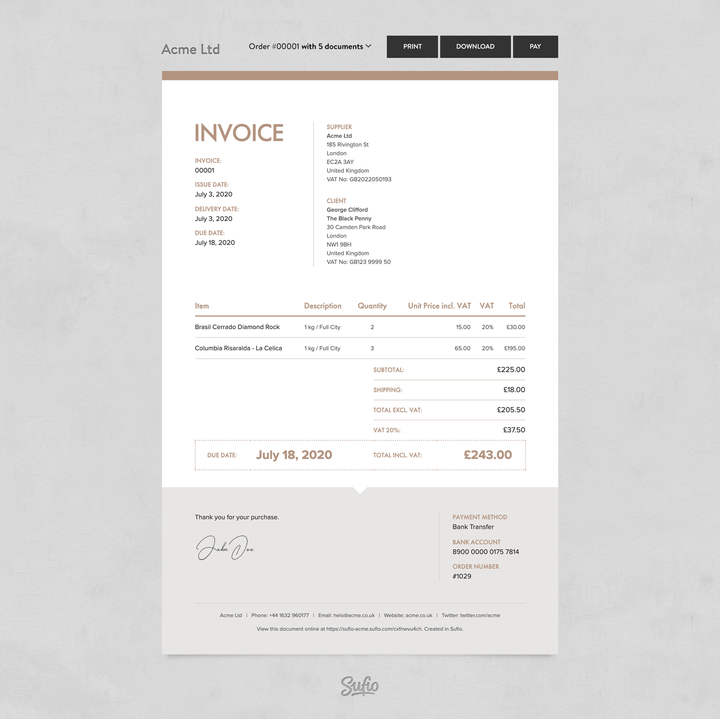
- The View invoice link redirects customers to an online version of their invoice, where they can download or print it. This page also lets the customer pay their unpaid invoices online with their credit card and view other documents related to the order.
- The Download invoice link allows customers to download a PDF version of the invoice directly.
To let customers download the invoice as a PDF:
- In the Order status page editor, go to Apps → Added.
- Click Sufio: Customer invoices.
- From the Invoice Link Type dropdown, select Download invoice.
- Click Save to apply the changes.
Note
You can add the app block twice and set one link to View invoice and the other to Download invoice. This lets customers choose whether to view the invoice online or download it as a PDF.
The extension can be configured to display invoice links only for orders that meet specific criteria, such as being paid or fulfilled.
The selected setting should correspond to how you configured automatic invoice creation in Sufio.
To choose which orders display invoice links:
- In the Order status page editor, go to Apps → Added.
- Click Sufio: Customer invoices.
- From the Display Invoice Links for dropdown, select one of the options.
- Click Save to apply the changes.
The following options are available:
- All orders: Show the invoice link for every order.
- Paid orders: Show the invoice link only for paid orders.
- Unpaid orders: Show the invoice link only for unpaid orders.
- Fulfilled orders: Show the invoice link only for fulfilled orders.
- Orders with invoice metafields: Show the invoice link only for orders that have invoice metafields created by Sufio. This option is useful for accounts that use a custom workflow to control when invoices are created.
If your store uses classic customer accounts, you can add invoice links to the customer account page by adding a code snippet to your theme.
To add an invoice link to the Customer Account page:
- In your Shopify admin, go to the Online Store → Themes page.
- Click the Actions button, then click Edit code.
- In the left sidebar, select customers/account.liquid. You can use the search bar at the top to find it faster.
- Add the following code snippets inside the
<table>that displays the customer’s orders. First, add a heading inside the<thead>:
Then, add the link to the invoice inside the <tbody>:
You can also use the same code snippet to add an invoice link to the order details page (customer/order.liquid template file).
To let customers download the invoice as a PDF right away, add the following code snippet inside the <tbody>:
Please note that the PDF version does not allow customers to pay unpaid invoices online with credit card.
Need help?
Do you need help with customizing your Shopify store theme? Please contact our experienced support team. We'll be happy to assist!