The Thank you page in your Shopify store confirms that an order has been completed. It displays an overview of the order, including the purchased items and the billing or shipping address.
Sufio, an invoicing app for Shopify stores, allows you to add a View invoice or Download invoice link to this page.
This is useful for customers who want to access or save their invoice right after purchase.
To add the View invoice link to the Thank you page:
- In your Shopify admin, go to Online Store → Themes and click Customize next to the theme you are using.
- From the header navigation, select Checkout and new customer accounts and then open the Thank you page.
- Click the Sections button in the left sidebar, then click Add app block and select Sufio: Checkout Invoices.
- From the Invoice Link Type dropdown, select View invoice.
- Click Save to apply the changes.
A View invoice link will be displayed on the Thank you page.
Note
Keep the following in mind:
- The link is automatically translated based on your store’s selected display language.
- The Thank you page is only available immediately after purchase. If a customer refreshes the page or tries to access the URL later, they will be redirected to the Order status page instead.
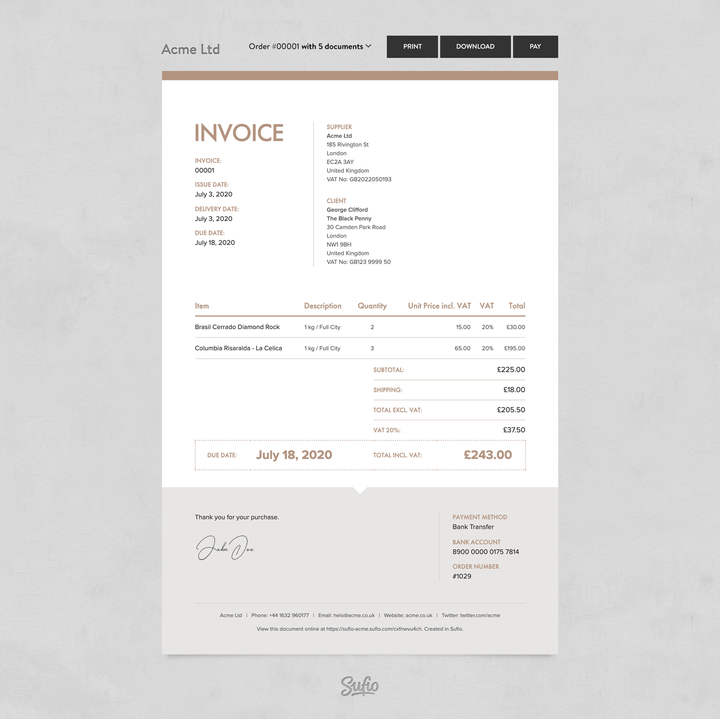
The View invoice link redirects customers to an online version of their invoice, where they can download or print it, as well as view other documents related to the same order.
This page also allows customers to pay their unpaid invoices online with their credit card.
The invoice link can also be set to download the invoice as a PDF directly.
To let customers download the invoice as a PDF:
- In the theme editor, on the Thank you page view, go to Apps → Added and click Sufio: Invoice button.
- From the Invoice Link Type dropdown, select Download.
- Click Save to apply the changes.
Note
The link can be added twice: once as View and once as Download. This lets customers choose whether to open the invoice online or download it as a PDF.
To change where the link appears, drag and drop the app block in the page structure.
You can customize the extension to display invoice links only for specific orders based on their status, such as paid or fulfilled.
The selected setting should correspond to how you configured automatic invoice creation in Sufio.
To choose which orders display invoice links:
- In the Order status page editor, go to Apps → Added.
- Click Sufio: Customer invoices.
- From the Display Invoice Links for dropdown, select one of the options.
- Click Save to apply the changes.
The following options are available:
- All orders: Show the invoice link for every order.
- Paid orders: Show the invoice link only for paid orders.
- Unpaid orders: Show the invoice link only for unpaid orders.
- Fulfilled orders: Show the invoice link only for fulfilled orders.
- Orders with invoice metafields: Show the invoice link only for orders that have invoice metafields created by Sufio. This option is useful for accounts that use a custom workflow to control when invoices are created.
Need help?
For help customizing your Shopify store theme, contact our experienced support team. We’ll be happy to assist!