The lines and totals section shows the products or services included in a document and how the final amount is calculated.
Well-structured line items, totals, and tax amounts help customers quickly understand what they are being charged for.
In Sufio, these elements can be customized to control which items appear in the line items table and how totals are displayed on the document.
To customize how line items and totals appear on your documents:
- In your Sufio account, go to the Design page.
- In the left-hand menu, select Lines & Totals.
Items in this section can be customized in three ways.
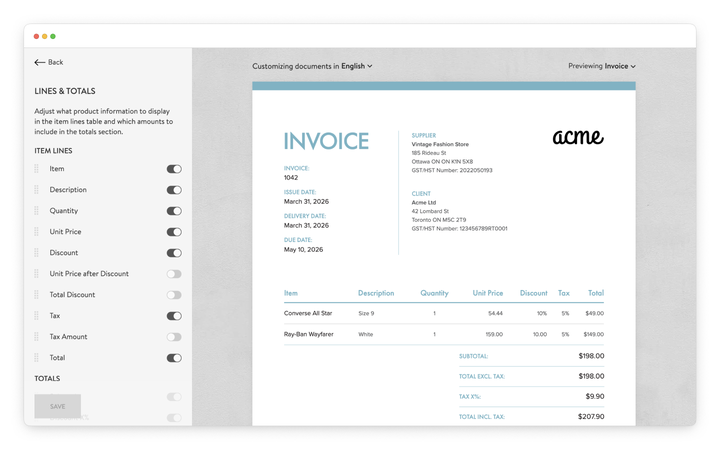
Use the toggle controls to choose which items appear on documents.
The Item Lines section displays each product or service included in the document as a separate line.
In this section, each row represents one item and can include details such as Description, Quantity, Unit price, Discount, and Tax.
The Totals section appears below the line items table and summarizes the amounts for the entire document. It includes values such as Subtotal, Total excl. tax, Tax, Total incl. tax, and Amount due.
Displaying only the relevant items helps keep documents easier to read and prevents unnecessary information from appearing on invoices.
You can change the order of line and total items by dragging them up or down in the list.
This allows the layout of the item lines table or totals section to better match the preferred document structure or accounting workflow.
To change how an item appears on the document, click the Edit icon next to the item name and enter a new label.
Renaming item labels can be useful when internal terminology differs from the default item names.
Professional invoices for Shopify stores
Let Sufio automatically create and send beautiful invoices for every order in your store.
Install Sufio - Automatic Invoices from the Shopify App Store