Invoices and credit notes can include several types of client information, such as the customer’s name, contact details, and shipping address.
In Sufio, these elements can be customized to control how client details appear on documents and how they are displayed.
These settings help keep documents clear and include only the information relevant to each transaction.
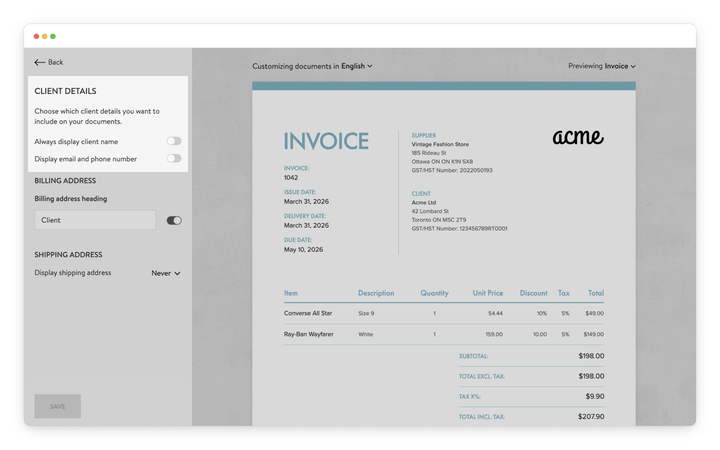
You can choose whether certain client details should appear on your documents.
Within the client details section, client information can be customized in the following ways:
When issuing a document to a company, Sufio normally displays only the company name.
To always display the client name on your documents:
- In your Sufio account, go to the Design page.
- In the left-hand menu, select Client Details.
- Enable the Always display client name toggle.
- Click Save to apply the changes.
Some businesses include customer contact details on invoices to make it easier to identify the recipient or follow up on a transaction.
To display the client’s email and phone number on your documents:
- In your Sufio account, go to the Design page.
- In the left-hand menu, select Client Details.
- Enable the Display email and phone number toggle.
- Click Save to apply the changes.
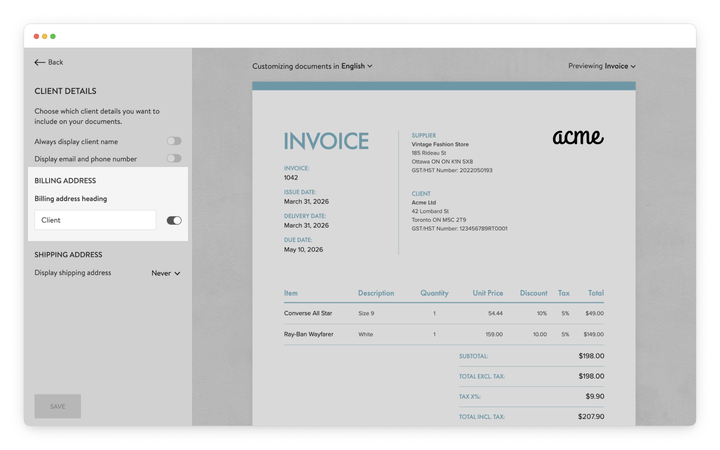
The billing address section identifies the customer’s billing information on the document.
You can rename this heading or hide it entirely.
To customize the billing address heading:
- In your Sufio account, go to the Design page.
- In the left-hand menu, select Client Details.
- Under the Billing address heading, edit the text field to change the label.
- Use the toggle to show or hide the heading.
- Click Save to apply the changes.
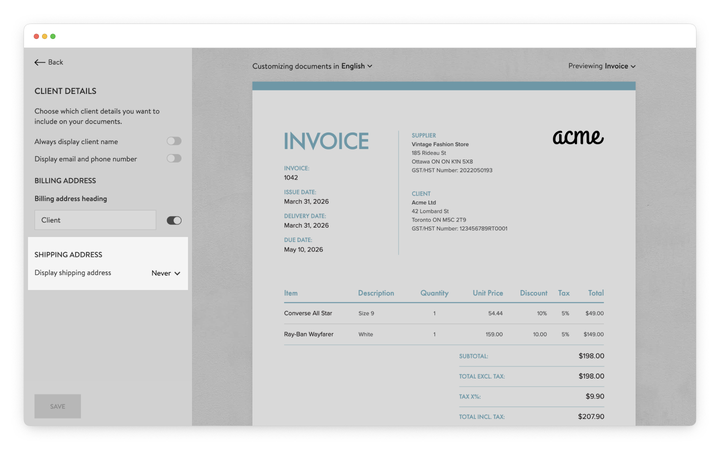
By default, the shipping address is not displayed on documents.
To adjust this setting:
- In your Sufio account, go to the Design page.
- In the left-hand menu, select Client Details.
- Under Shipping Address, choose one of the following options:
- Never: The shipping address is never displayed.
- Auto: The shipping address appears only when it differs from the billing address.
- Always: The shipping address is always displayed.
- Click Save to apply the changes.
This allows you to include shipping information only when it is relevant.
Note
Showing a client detail item controls its visibility on the document, but it does not create or change its value.
A client detail appears only if the document contains a value for it.
To display it on your document, make sure the relevant data is available in the order or customer information:
- Add or update customer details in your Shopify order
- Make sure billing or shipping address information is available for the document
If no value is defined, the item will not appear, even if it is enabled in the design settings.
The Billing address heading setting only changes the label shown on the document (for example, Client).
It does not affect the actual billing address or customer information. To update these details, edit the customer or order data in Shopify.