Dates provide essential context for invoices and other business documents.
They indicate when a document was issued, when goods or services were delivered, and when payment is expected.
In Sufio, the design settings allow control over which date items appear on documents and how they are arranged.
To customize which dates appear on your documents:
- In your Sufio account, go to the Design page.
- In the left-hand menu, select Dates.
Items in this section can be customized in three ways.
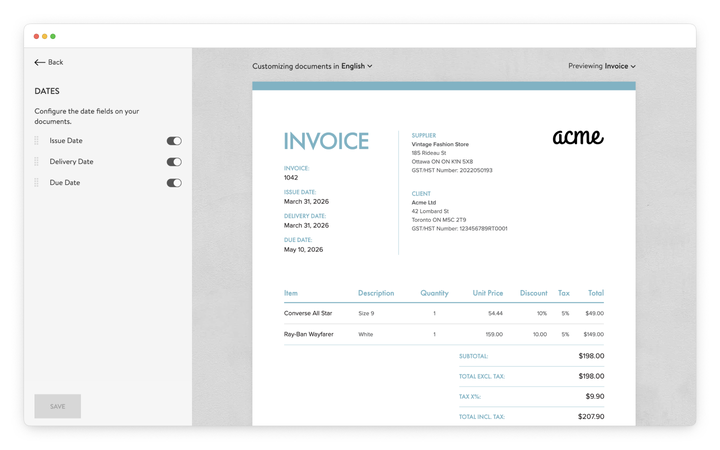
Use the toggle controls to choose which date items appear on documents.
For example, some businesses display only the Issue date and Due date, while others also include the Delivery date for orders involving physical goods.
Showing only the relevant dates helps keep documents clear and avoids displaying unnecessary information.
Date items can be reordered by dragging them into the desired position.
This allows the document layout to match the preferred structure of the invoice or the requirements of internal workflows.
To change how a date item appears on the document, click the Edit icon next to the item name and enter a new label.
Renaming date item labels allows the document terminology to match internal naming conventions, accounting systems, or preferred business language.
Professional invoices for Shopify stores
Let Sufio automatically create and send beautiful invoices for every order in your store.
Install Sufio - Automatic Invoices from the Shopify App Store