Clear typography makes your invoices easier to read and helps customers quickly find key information such as totals, due dates, and payment details.
In Sufio, you can adjust the font and font size of your documents to better match your brand or improve readability, with access to over 40,000 premium fonts available in the app.
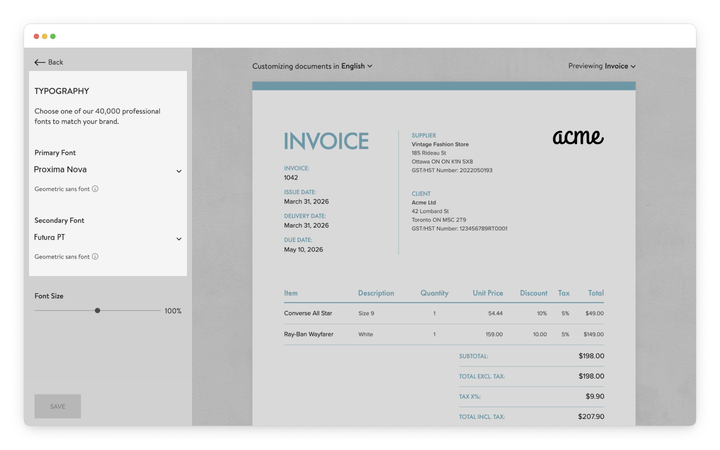
To change the font on your documents:
- In your Sufio account, go to the Design page.
- In the left-hand menu, select the Typography section.
- From the Font dropdown, select the font you want to use. Some document templates offer Primary and Secondary fonts.
- Click Save to apply the changes.
To adjust the font size used on documents:
- In your Sufio account, go to the Design page.
- In the left-hand menu, select the Typography section.
- Use the Font Size slider to increase or decrease the text size.
- Click Save to apply the changes.
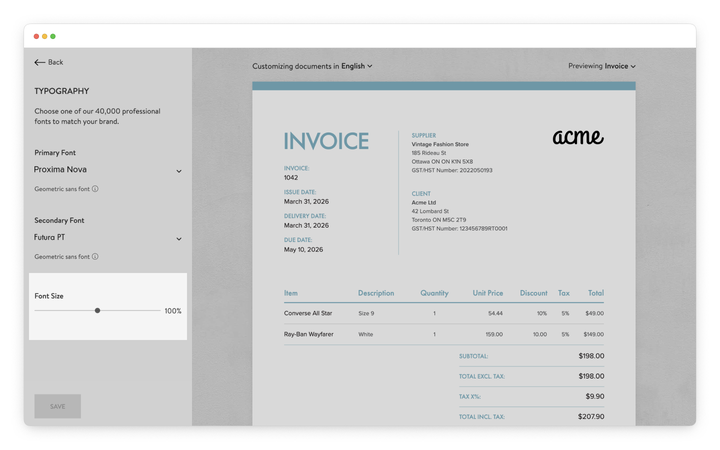
Increasing the font size improves readability, especially when documents are viewed on screen.
However, larger text can cause the document content to extend onto multiple pages when documents are printed or downloaded as a PDF.
On the other hand, reducing the font size allows more information to fit on a single page.
For example, a smaller font size can help when the line items table contains multiple columns that need to fit within the page width.
If your business already uses a specific font, you can select it in Sufio to keep your documents consistent with your online store, product packaging, and other branded materials.
Sufio supports over 40,000 fonts, including free fonts from Google Fonts and premium fonts from Monotype, one of the world’s largest font foundries.
This allows you to select the exact font used in your brand and keep your documents visually consistent with your website and other materials.
Premium fonts from Monotype are available on the Premium plan or higher.
These plans already include the monthly license fee required to use these fonts in your invoices and other generated PDF documents sent to customers.
If you do not already have a defined brand font, Sufio allows you to explore fonts across different categories and choose a style that fits your business.
Fonts are organized into categories based on their design characteristics:
- Grotesque sans: Clean and neutral fonts with uniform strokes. Suitable for brands that want a modern and balanced appearance.
- Geometric sans: Fonts built from simple, rounded shapes. Often used for minimal branding.
- Humanist sans: More organic fonts designed for readability. They create an approachable but professional look.
- Transitional serif: Serif fonts with stronger contrast between strokes. They provide a more formal and structured appearance.
- Old style serif: Classic serif fonts inspired by calligraphy. Used for elegant or traditional brand styles.
- Didone serif: High-contrast serif fonts commonly associated with luxury, fashion, and publishing.
- Slab serif: Bold serif fonts with thick, block-like serifs. They create a strong and distinctive visual presence.
- Monospaced: Fonts with fixed-width characters, often associated with technical or programming environments.
These categories can help you choose a font that reflects the tone you want your documents to project: modern, classic, technical, or elegant.
Note
If your document language uses accented characters or a non-Latin alphabet (such as Japanese or Arabic), some fonts may not support all characters.
When this happens, Sufio places a warning next to fonts that may not work correctly with the selected language.
Professional invoices for Shopify stores
Let Sufio automatically create and send beautiful invoices for every order in your store.
Install Sufio - Automatic Invoices from the Shopify App Store