When you first install Sufio, you select one of the available document templates, which defines the overall layout and visual style of your documents.
You can change the template at any time to refresh your branding without modifying the content of your documents.
When you switch templates, all existing documents are updated to the new design, except documents that have already been downloaded as PDF files.
To change the template for your documents:
- In your Sufio account, go to the Design page.
- Click the Change Template button in the top-left corner.
- Select the new template you want to use.
- Click on the Use this template button.
- Click Save to apply the changes.
Your documents are now updated to use the new design.
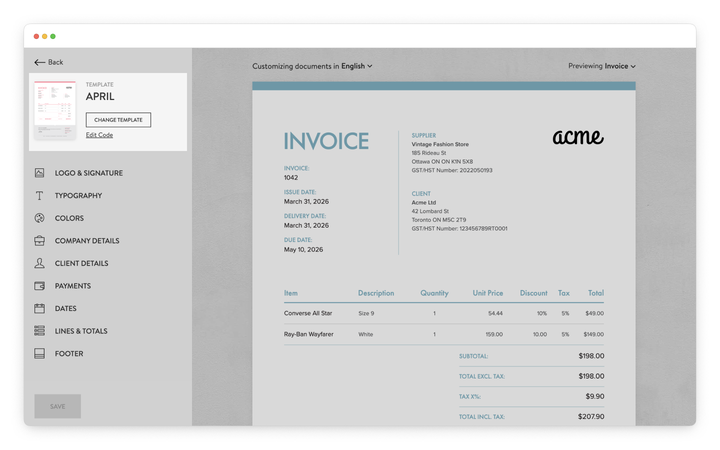
Each template will define the layout and visual structure of your documents, including how sections such as company details, item lines, totals, and the footer are arranged.
When selecting a template, consider how the layout fits your branding and the type of information you typically include on invoices.
For example, some templates focus on a clean, minimal layout, while others highlight totals and key details more clearly.
Note
If you need more advanced customization, you can edit your template directly in the code editor by clicking the Edit code link on the Design page, located just below Change template.
Changes made in the template code editor do not transfer to a different template.
Professional invoices for Shopify stores
Let Sufio automatically create and send beautiful invoices for every order in your store.
Install Sufio - Automatic Invoices from the Shopify App Store