When you first install Sufio, you select one of the available document templates, which defines the overall layout and visual style of your documents.
You can change the template at any time to refresh your branding without modifying the content of your documents.
When you switch templates, all existing documents are updated to the new design, except documents that have already been downloaded as PDF files.
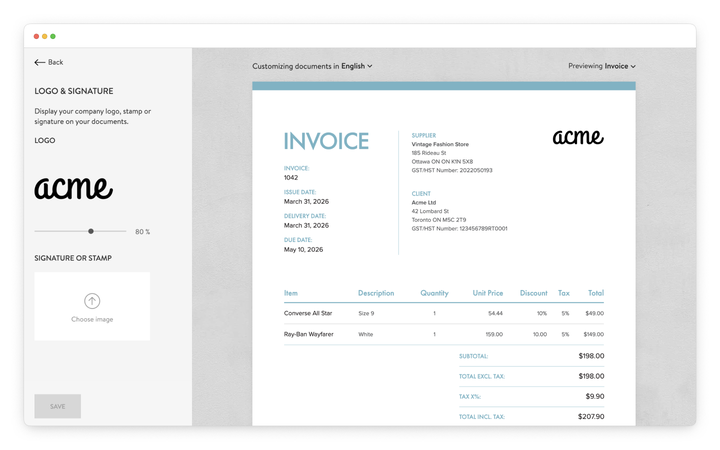
To upload your logo or signature:
- In your Sufio account, go to the Design page.
- In the left-hand menu, select the Logo and signature section.
- Click Choose image and upload your logo or signature to the document.
- Click Save to apply the changes.
Your documents will automatically update to include the uploaded image. The exact position of the logo or signature depends on the template you are using.
Note
For best results, use a high-resolution PNG file with a transparent background. This keeps the logo or signature sharp and ensures it blends cleanly with the document layout.
Professional invoices for Shopify stores
Let Sufio automatically create and send beautiful invoices for every order in your store.
Install Sufio - Automatic Invoices from the Shopify App Store